
Excel is an essential tool for organizing, analyzing, and managing data efficiently in both professional and personal tasks. Its interface may appear complex at first, but understanding its structure is key to working confidently. By learning how to navigate the workspace, you can quickly access tools, enter data accurately, and keep your spreadsheets organized. Familiarity with the interface also reduces mistakes and saves time, especially when managing large datasets. As you practice, navigating Excel becomes natural, allowing you to focus on data analysis rather than learning the tool. This guide introduces beginners to Excel’s core interface elements and navigation essentials. Boost your data management skills with our Microsoft Excel Online Training designed for beginners and professionals alike.
Excel Workspace
The Excel workspace is designed to provide a clear, organized area for data entry and management. It combines rows, columns, cells, and sheets into a user-friendly layout that is easy to navigate once understood. Knowing how these elements interact allows you to work efficiently while minimizing errors. A solid understanding of the workspace simplifies tasks like data entry, formatting, and analysis. Familiarity with the layout also makes it easier to explore formulas, charts, and other advanced Excel tools. Mastering the workspace creates a strong foundation for effective spreadsheet management.
Interface Components
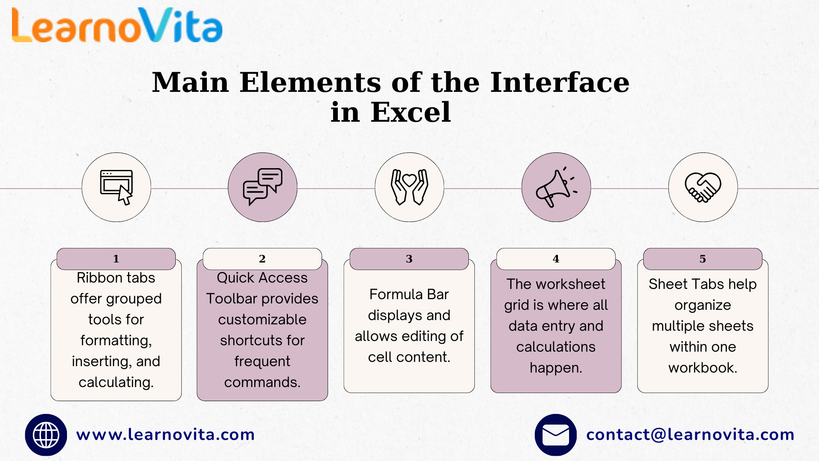
- Workbook – The complete Excel file that houses one or more worksheets.
- Worksheet – The grid where data is entered, calculated, and analyzed.
- Ribbon – Toolbar with organized tabs like Home, Insert, and Formulas for quick access.
- Formula Bar – Displays the contents or formula of the selected cell for editing.
- Quick Access Toolbar – Offers shortcuts to frequently used commands like Save and Undo.
- Name Box – Shows the active cell reference and allows direct navigation.
- Status Bar – Displays quick summaries such as sum, average, or count of selected cells.
- Sheet Tabs – Enables switching between worksheets and managing multiple datasets easily.
Navigating Cells
Effective navigation within a worksheet is essential for accurate and efficient data handling. You can move between cells using the keyboard, mouse, or built-in shortcuts, allowing faster selection and editing. Practicing navigation reduces mistakes and ensures a smooth workflow. With experience, navigating large spreadsheets becomes effortless and intuitive. Comfortable cell navigation allows you to focus on analysis rather than searching for tools. These skills are crucial for working confidently with formulas, charts, and other Excel functions. Enroll in the Best Online Training & Placement Program to gain in-demand skills and secure top career opportunities with expert guidance.
Managing Sheets
Handling multiple sheets in a workbook becomes simple once you understand how Excel organizes them. Sheet tabs at the bottom let you switch between pages, rename them, or rearrange them to maintain a structured workbook. Proper sheet management ensures your data is organized and easily accessible. Being familiar with sheets also helps when analyzing related datasets or creating multi-sheet reports. Efficient sheet handling improves productivity and prevents confusion. Learning these skills early lays the groundwork for advanced Excel use.
Navigation Tips
- Click or drag to select individual or multiple cells quickly.
- Use arrow keys for precise movement across the worksheet.
- Press Enter, Tab, or Shift + Tab to navigate while entering data.
- Use Ctrl + Arrow Keys to jump across large data ranges efficiently.
- Switch between worksheets by clicking on sheet tabs at the bottom.
- Double-click a sheet tab to rename it instantly for better organization.
- Shortcuts save time and reduce unnecessary mouse movements.
- Practicing these tips regularly improves speed and accuracy when handling large spreadsheets.
Building Confidence
Becoming comfortable with Excel’s interface and navigation builds confidence in handling data. Regular practice allows you to move seamlessly between cells and worksheets, making your work faster and more efficient. Familiarity with navigation reduces errors and allows you to focus on analyzing and presenting data. Early mastery of these basics prepares you for formulas, formatting tools, and advanced features. Being confident in Excel enhances productivity and makes learning complex functions easier. Comfortable navigation ensures smoother workflow across all types of spreadsheets.
Conclusion
Understanding Excel’s interface and mastering basic navigation are essential for effective spreadsheet work. Once you can move efficiently between cells and worksheets, entering data, performing calculations, and analyzing information becomes easier and more accurate. Mastering these fundamentals reduces mistakes, saves time, and enhances overall workflow. With regular practice, these skills become second nature, making Excel a reliable and intuitive tool. A solid foundation in interface and navigation prepares you for advanced Excel tasks and professional-level data management.